After much discussion over the past few days, we've decided to close down operations at the end of the month (September 2023).
We set out to make an AI-enabled spreadsheet experience that works "like magic", and we know this news is disappointing to many of your found our tool useful — we're disappointed too, and your support meant everything to us.
We'd like to thank our customers, friends and investors for their support, and we sincerely hope to have the opportunity to serve you again in the future.
What this means for our users
We are no longer accepting new customers or upgrades.
Existing users' plans will continue to work until the end of their respective billing periods, then cancel automatically. There is no need to do anything from your end.
If you'd like to cancel your plan immediately and receive a pro-rated refund, send us an email at [email protected] and we'll organise this for you.
Past invoices can be found through the customer portal.
Why did this happen?
There are largely two reasons: technical and personal.
Technical
Flowshot started out in life building bespoke e-commerce AI models for several enterprise customers.
Using our stack of in-house models, we spun out what became one of the first AI add-ons for Google Sheets. We spent thousands of hours optimising our AI stack for near-instant generations with zero downtime — it really felt like magic.
However, we received a lot of requests from our users to switch over to OpenAI's GPT-3 model (at the time), and we eventually made the transition.
While the quality of generations improved, we quickly found our users were constantly hitting rate limits. We attempted to open a dialogue with OpenAI and applied multiple times for increased quotas, without ever receiving any response.
Our user base and revenue grew exponentially, but unfortunately, so did the amount of complaints about rate limits. We doubled down on trying to make contact with OpenAI, without any success.
During this time, dozens of competitors had appeared, and transitioning back to our own in-house models or to another provider seemed impractical.
Personal
Eventually, the ongoing technical issues and customer complaints wore us down, and we (Chris and John) came to terms with the fact that both of us were burned out.
Although this wasn't first time in our 2+ years of operating the company, we ultimately agreed that pushing through as we have in the past didn't seem like a sustainable approach — and it wasn't fair to our customers, our friends, and ourselves.
What's next?
An in-depth retrospective is on the way, detailing the genesis of Flowshot (and what came before it), the challenges we faced, and the reasons for closing down operations.
Looking back, we learned the importance of controlling our technology stack, rather than being locked into a third-party vendor — despite the possibility of quick wins.
We're taking some time off, however we plan on working together again on new products in the future.
Wrapping up
Thank you again — really.
Although this chapter is ending, we look forward to applying the lessons learned to make an even bigger impact in the future.
Have a fantastic rest of the week and we'll follow up with another blog post soon with a full retrospective.
- Chris and John
Alongside the save button, remote caching is a performance optimization that prevents the odd Google Sheets quirk of periodically refreshing your formulas and wasting monthly characters.
Remote caching is just one of the many performance optimizations that Flowshot has under the hood.
What is remote caching?
Remote caching saves a copy of your generated outputs in our own cache, rather than relying on Google Sheets' local cache.
This means that scenarios such as refreshing the page or inserting rows will not retrigger the formula and use up your character quota — instead, you'll get a cached version of the generation delivered back to you.
Bypassing the cache
There are certain scenarios where you might want to bypass the cache and get an original response every time.
To do this, you can structure your formulas as follows:
=AI("Generate a random number between 1 and 100,000", FALSE)Code language: PHP (php)Adding FALSE to the formula will reset the cache.
This applies to both =COMPLETE() and =AI().
Compared to other GPT plugins, Flowshot has a number of performance optimizations that sets it apart from the rest.
Here's how rate limiting, automatic retries, batching and remote caching can significantly improve your overall experience of using AI with Google Sheets.
Rate limiting
Google Sheets has a very short timeout period for custom functions, which often results in AI formulas failing to load with an #ERROR! message. We've implemented rate limits to ensure this doesn't happen.
As the name "rate limiting" suggests, the rate of generation requests are limited to a certain level to make sure that the APIs behind Flowshot don't timeout or fail. This happens automatically — there's nothing that you need to do!
Automatic retry
Rate limiting is one step towards preventing errors, however Google Sheets can be unpredictable and randomly fail. To prevent this from affecting your workflow, we've implementing automating retries which will repeatedly submit your generation requests until it works.
Batching
Autocomplete and =COMPLETE() has automated batching to use your characters more efficiently and again, prevent timeouts and errors. You may notice that it behaves slightly differently compared to =AI() and the results are always returned as one batch, as opposed to one by one.
On average, we've found that our batching optimizations means that our users effectively get 70% more usable characters to use every month.
Remote caching
Another optimization that's in place is remote caching.
Google Sheets will automatically regenerate your AI formulas when you change anything in the data or reload the spreadsheet.
There are a few other scenarios when your formulas will be reloaded, seemingly at random — so it's a good idea to regularly "save" your work to avoid wasting your monthly character count.
Using the Save button
To save your AI formulas as plain values, click the Save button at the top right of the sidebar.
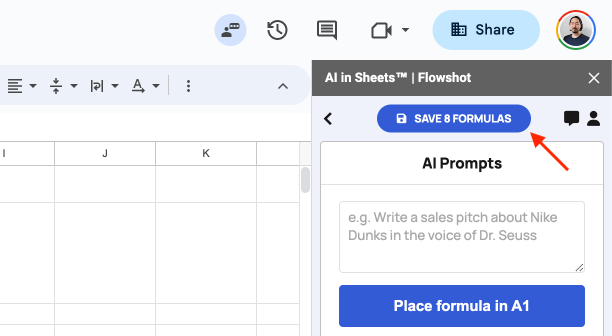
This will replace your formulas with the plain text generated by the AI.
As a reminder, the Save button will turn blue when there are more then 10 unsaved formulas on the current spreadsheet.
If you're logged in with multiple accounts within the same browser, you might notice some unexpected behavior from Flowshot, alongside the message: Multiple Google accounts detected.
This is the most common reason why Flowshot might not work properly, and is a well known issue with Google Workspace. You can find more information about here and here.
In the first link, you'll see that the issue was first created in 2017 and has hundreds of other developers who are facing the same issue. We've tried dozens of workarounds, but it seems that this can only be fixed by Google.
However, we have three solutions for using Flowshot while logged in with multiple Google accounts.
1. Use your default Google account
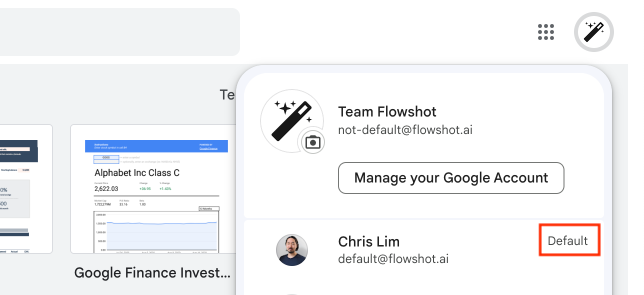
If you're seeing the "multiple accounts detected" message, it's most likely that you're not logged in with your default Google account.
An easy way to tell which account is your default is to click on the profile picture in the top right corner of your screen. If you see the word "Default" next to one of your Google accounts, you'll need to switch to that one to use Flowshot.
2. Log into your browser (Chromium)
If you want to use Flowshot from a Google account that isn't your default, the other option is to log in with the same Google account to your browser. This applies to any browser based on Chromium, including Google Chrome and Microsoft Edge.
An easy way to tell if your browser and active Google accounts match is to compare their profile pictures. To be sure, click on both pictures to check that the email addresses match.
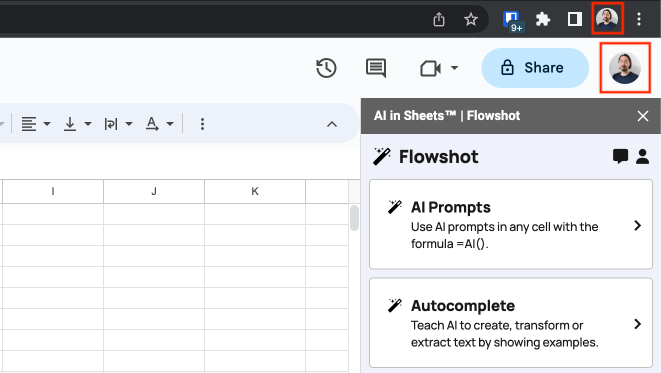
You can change your browser's Google account by clicking on the profile picture within your browser. In the screenshot above, this is the upper profile picture.
After logging in, your browser will most likely open a new window. Head over to the Google Workspace Marketplace, make sure your accounts still match, and install the add-on from there.
3. Use incognito
If the first two methods don't work, you can log into your preferred Google account with incognito mode. Click on the three dots pictured below, and selected "New Incognito Window".
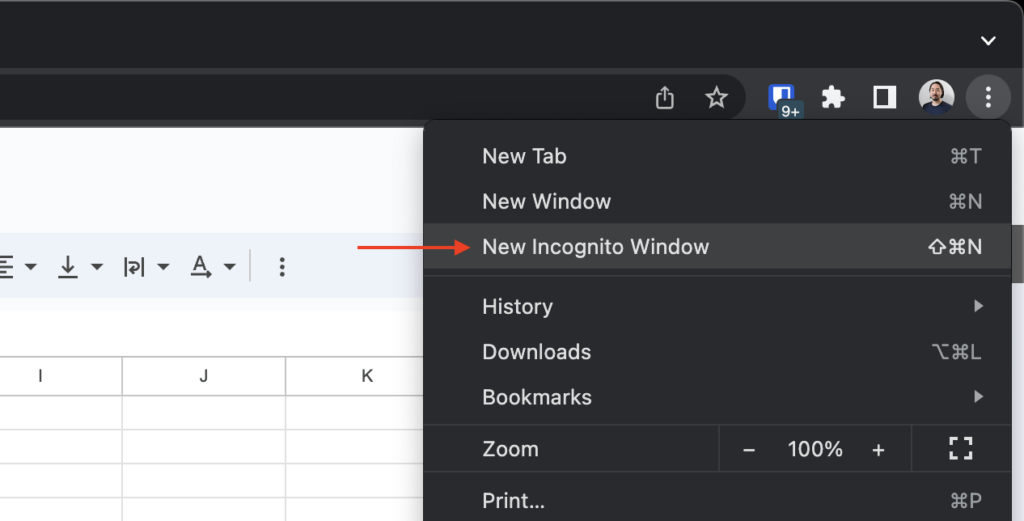
Head over to the Google Workspace Marketplace, at which point you'll be prompted to log in again. Once you're logged in, install the add-on from there.
The most commonly reported issue by far is that the sidebar doesn't load within Google Sheets.
Here are the two reasons why this might happen.
Multiple Google accounts
Almost all users who report that the sidebar isn't loading have the same reason: they're logged into multiple Google accounts in their browser.
Developers have been dealing with this issue since Google Workspace was first released, with the first ticket created in 2017. For an explanation and solutions, see the documentation on the multiple Google accounts detected issue.
Slow internet
If you have a slow internet connection, you may need to wait some time before any extensions load. This is a shortcoming of how Google Sheets work, and applies to any extensions that you have installed.
Still have issues?
Google Workspace does not share the contact details of any reports made through their platform:
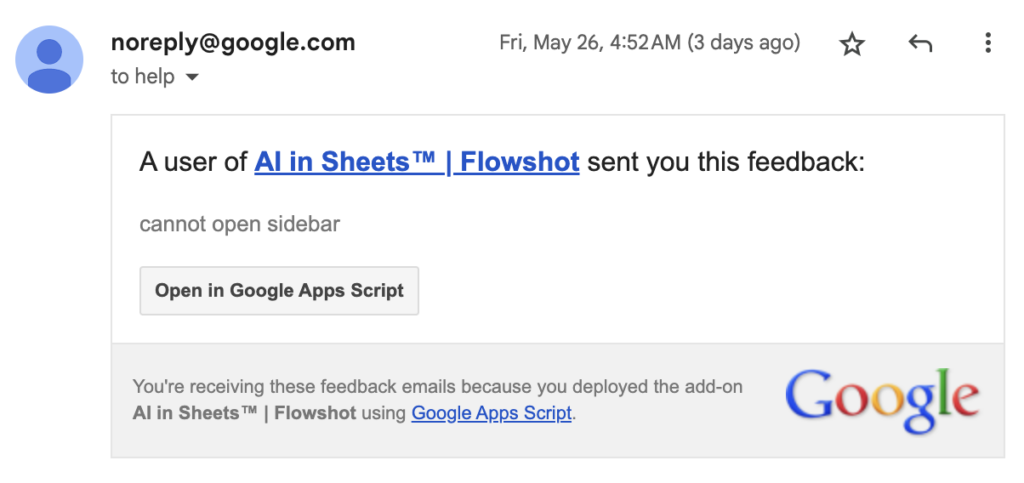
As such, contact us via live chat if you're still running into issues.
Flowshot can be installed from the Google Workspace Marketplace or from any spreadsheet through the top menu bar.
For frequently asked questions about installation, head to the end of this article for more information.
Install from Google Workspace Marketplace
We recommend installing Flowshot through the Google Workspace Marketplace.
1. Install Flowshot
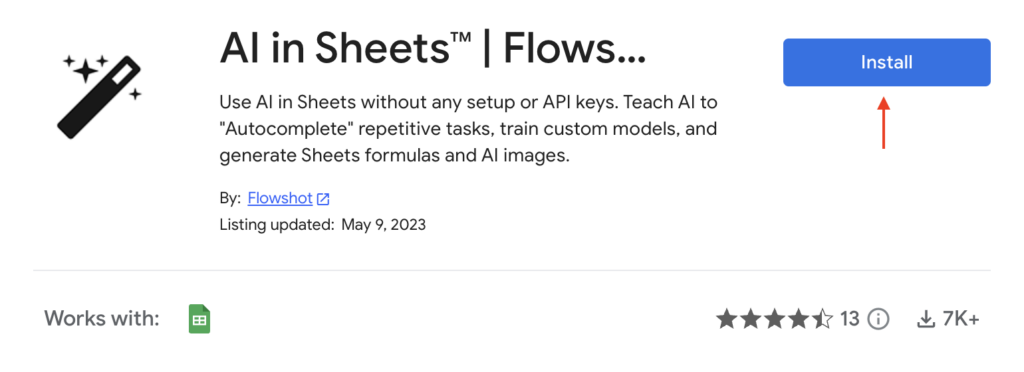
Go to the Google Workspace Marketplace and click Install.
2. Go to Google Sheets
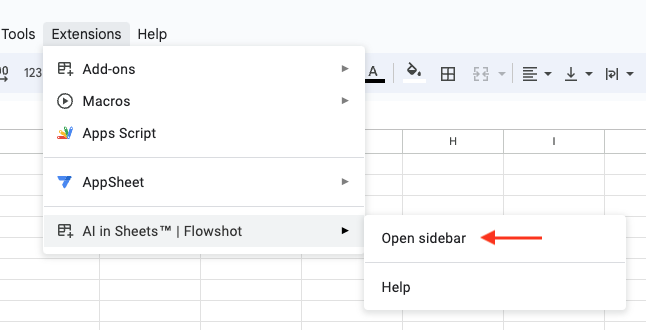
Head to Google Sheets and open a new or existing spreadsheet. Click on Extensions → AI in Sheets | Flowshot → Open sidebar.
3. Try out Flowshot
Follow the instructions in the sidebar, or copy/paste this formula in cell A1 to see how Flowshot works: =AI("Write me a funny joke")
Install from Google Sheets
Alternatively, you can install Flowshot from within Google Sheets.
1. Open extensions
Navigate to Extensions → Add-ons → Get add-ons.
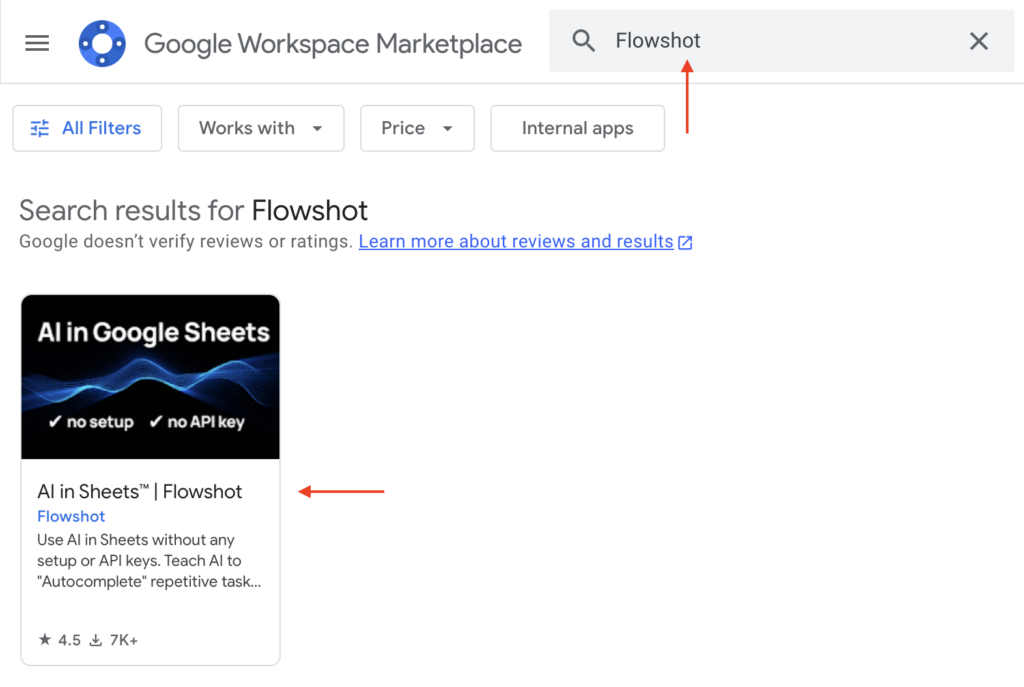
2. Search for Flowshot
Search for "Flowshot" in the search bar and click on the top result:
3. Install Flowshot
Click Install and follow the prompts.
4. Open Flowshot
Once installed, click on Extensions → AI in Sheets | Flowshot → Open sidebar.
5. Try out Flowshot
Follow the instructions in the sidebar, or copy/paste this formula in cell A1 to see how Flowshot works: =AI("Write me a funny joke")
Common issues
Here are common issues and their fixes:
Multiple accounts detected
View the documentation on multiple Google accounts detected error and how to fix it.